

Start the game
- Open All Rooms, choose the Room, and select the Game Master.
- Select Open Live View and check the player-facing display.
- Select the first Puzzle the group will meet.
- When players are ready, select Start and check that the Live View timer counts down.
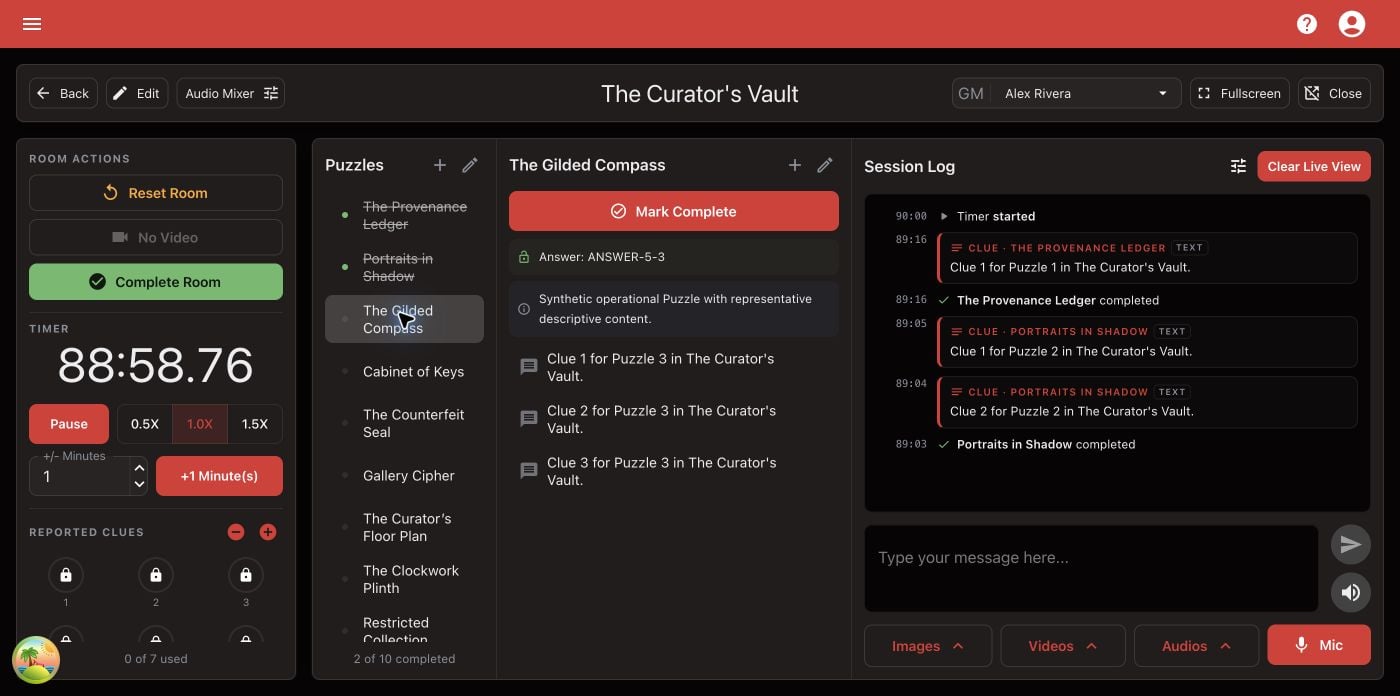
The Room Dashboard keeps live controls, prepared Clues, and the Session Log in one Game Master workspace.
Help players
- Choose the current Puzzle to see its answer, description, and Clues, then select a Clue to send it to Live View.
- Use the message box for a custom message.
- Select + in the Puzzles or Clues list to add a Puzzle or Clue during the game. See Add Puzzles and Clues.
- Use Images, Videos, or Audios to send Room media. Audio plays from the Room Station, so check its output device and level.
- Use Mic only when live audio is part of the Room’s plan.
- Adjust reported Clues when needed.
Adjust time
To add time, type the number of minutes and select the Minute(s) button beside it. A negative number takes time away. Use the speed controls only for testing or a deliberate correction.Track Puzzle progress
Select Mark Complete when players solve a tracked Puzzle. If you marked one by mistake, reverse it rather than hiding the original action. The Session Log records what happened. Its filter shows or hides Sent to players, Completions, and Clock changes; the session start, time adjustments, and outcome are always shown.End and save the Room Session
- Select Complete Room when the group succeeds. When the timer runs out, the game is recorded as a failure.
- In the Session details dialog, confirm the Game Master, total and experienced players, reported Clues when shown, and any notes.
- Save once. The game then appears in Room Statistics.