

Create the Room
- In All Rooms, select Create Room.
- Enter a Room name your staff will recognize, the starting time in minutes, and Clues per game.
- Select Create Room.
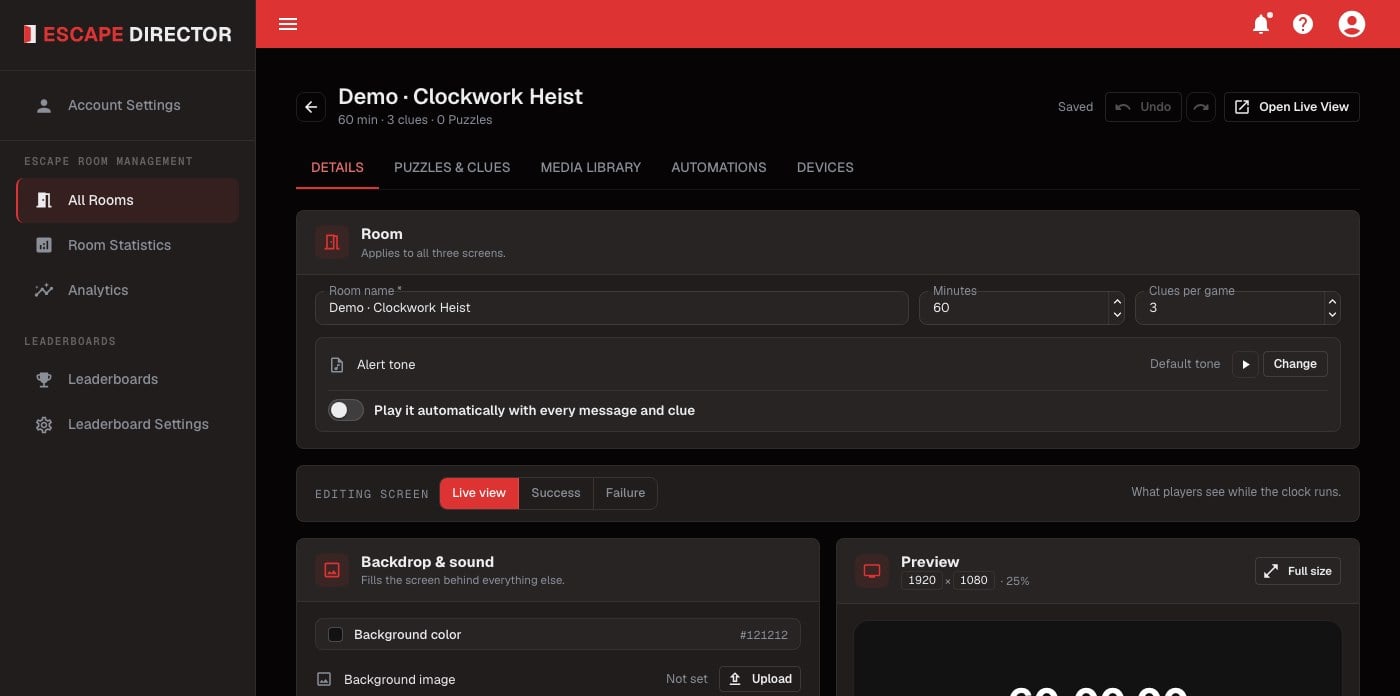
After creation, the Details tab keeps Room defaults and all three player-facing screen configurations together.
How saving works
Changes on Details and Puzzles & clues save on their own, and the top of the page shows Saved when they have. Undo (or Ctrl+Z) takes back the last saved change, one at a time, and Redo puts it back. Undo lasts until you leave the page. Automations and Devices save only when you select Save.Delete a Room
Deleting a Room is permanent. It deletes the Room’s Puzzles, Clues, media, Automations, and every game played in it. Its games leave Room Statistics, Analytics, and Leaderboards. Edit the Room instead unless you want all of this gone.
- In All Rooms, select ⋮ (Room actions) on the Room, then Delete room.
- Type the Room name to confirm, then select Delete room.