

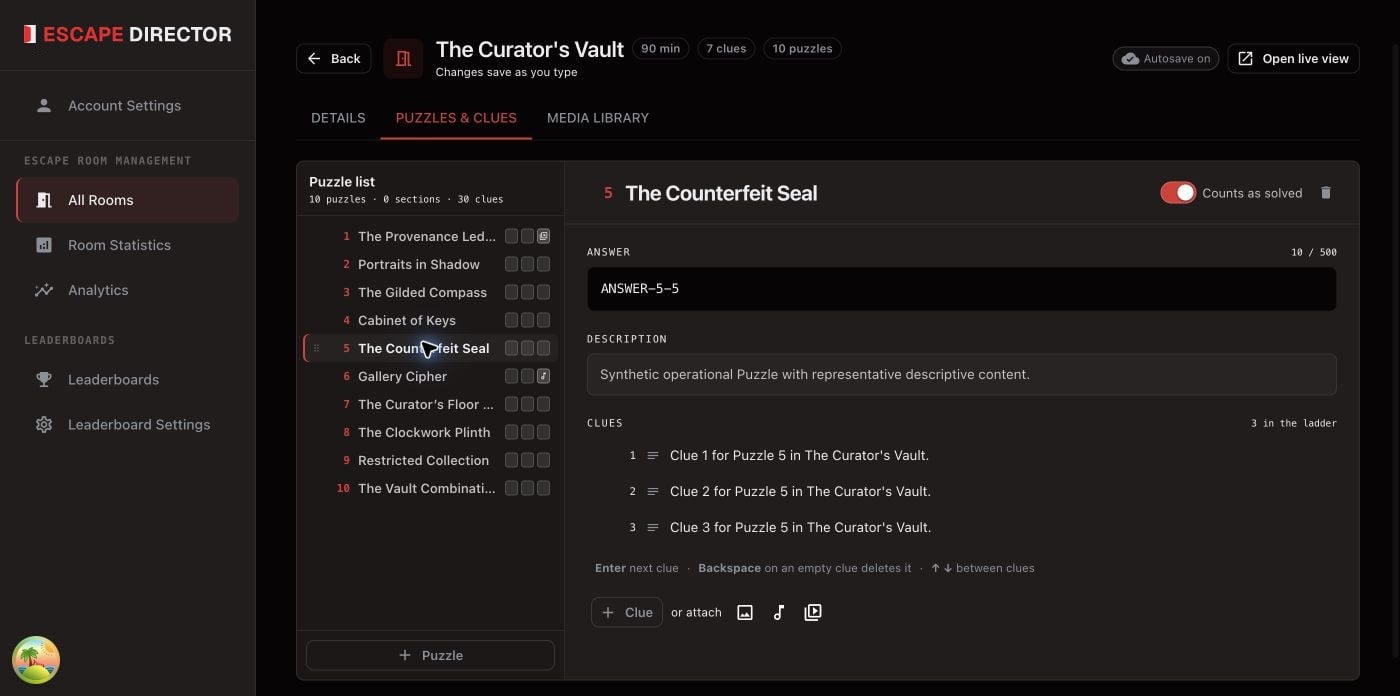
The Puzzle rail stays visible while you edit one Puzzle and its Clue ladder.
Add a Puzzle
- Select Puzzle at the bottom of the Puzzle list and enter a short name. To group Clues without adding a Puzzle to solve, select Section instead; it doesn’t count toward completed Puzzles. To switch later, use Convert to Section or Convert to Puzzle in Puzzle options.
- Add the answer and a short internal description if they help the Game Master.
- Add Clues in order, from a light nudge to direct help. Use the attachment actions beside Clue for an image, audio, or video from the Media library.
- Changes save on their own. A change that can’t save yet, such as an empty Clue or a Puzzle with no name, shows Not saved yet with the reason.
Edit Puzzles and Clues from the Room Dashboard
You can add and edit Puzzles and Clues from the Room Dashboard, even during a game.- Puzzle: select + at the top of the Puzzles list, or Edit Puzzles and then Edit Puzzle from a Puzzle’s actions. Turn Can be marked complete off for a Clue Section.
- Clue: select the Puzzle, then + at the top of the Clues list. Choose Text, Image, Audio, or Video, type the text or choose the file from Room media, and select Create Clue. To edit or reorder Clues, select Edit Clues.
- A change to Can be marked complete during a game applies to the next game.
- You can delete a Puzzle only after deleting its Clues. In the editor, deleting a Puzzle also deletes its Clues.
- A media Clue can only use a file already in the Media library. Upload new files in Manage Room Media.
- You can’t add or edit Puzzles or Clues while the Room Dashboard is offline.