

Before you begin
- Have the device’s connection instructions, message format and supported commands. For MQTT, also have the broker address and any login details.
- Run Room Connector on the Room Station, on a network that can reach the devices or broker. Guest networks may block this.
1. Add the connection
- Choose Add Integrated Device → Existing device and name it.
- Choose MQTT or HTTP and fill in the connection details.
- For HTTP, enter the Device address if Escape Director should send it commands. Leave it blank for a device that only sends messages.
- Choose Add Device, then expand its row.
2. Map a signal
- Choose Add prop and name the puzzle or mechanism.
- Choose Add from a message, keep A moment selected, and name the signal, such as Button pressed.
- Choose Listen and operate the device. For MQTT, enter its topic filter.
Select a message, then click the value that matters, such as
"pressed". You can also enter the rule by hand. - Check the value type: the boolean
truediffers from the text"true". - Choose the rule’s verb (see below).
- To complete a Room Puzzle, choose it under Complete a puzzle. This creates a regular Automation.
- Choose Save signal.
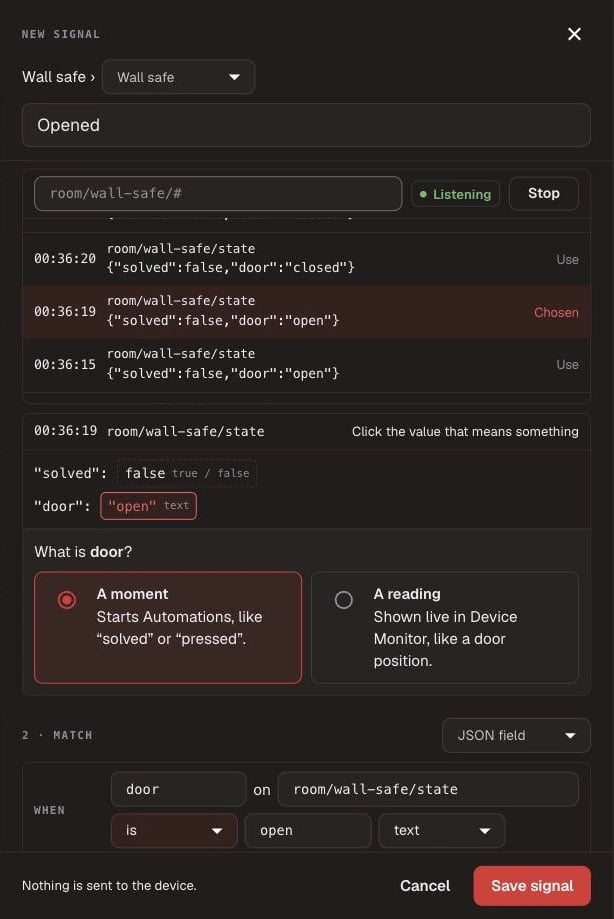
Listen, choose a message, then click the value that means something.
Listening can’t tell whether repeated messages are separate events or regular
state reports, so choose based on how your device works. MQTT messages marked
Retained show earlier state and don’t run Automations.
3. Map state and commands
- State: choose Add from a message → A reading to show a reported text, number or true/false value in Device Monitor. A reading doesn’t trigger Automations.
- Commands: choose Add command and enter an MQTT topic and payload, or an HTTP GET or POST path. Use a name a Game Master will recognize, such as Open latch. If the device reports the result, choose that state under expected state, with its value and wait time.
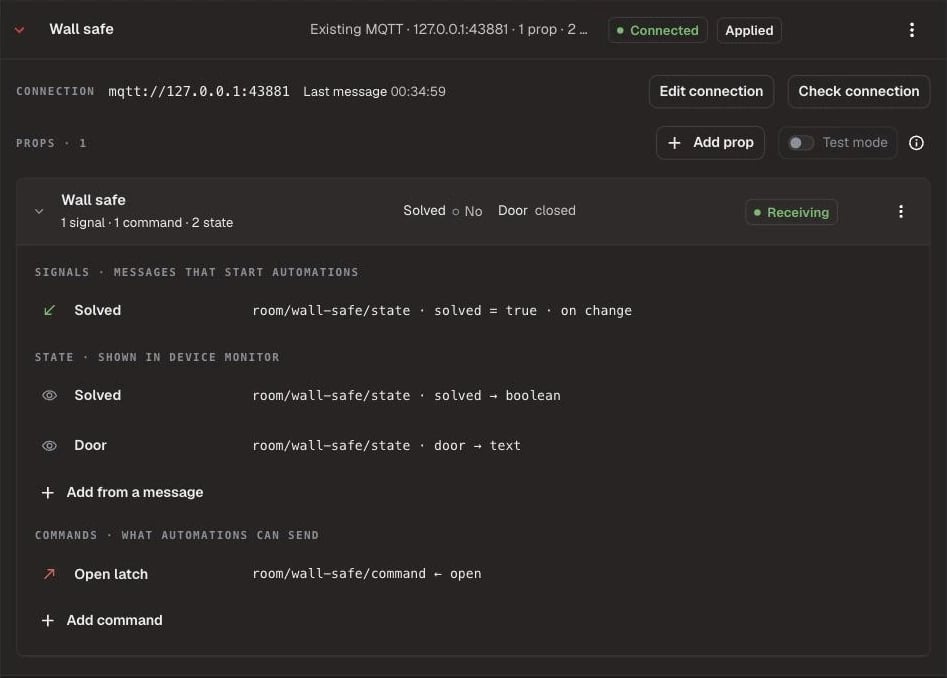
Each prop lists its signals, readings and commands beside the messages they use.

A test command shows what is known: sent, accepted, and whether the expected state was reported.
4. Use it in an Automation
In Automations, choose a device signal as a trigger or a device command as an action. To create one there, choose New device signal… or New device command…, then Save and use. Save the Automation afterward. Used in beside a mapping opens the Automations that use it. Removing a mapping disables those Automations until you repair them.5. Check the complete game
- In Devices, turn on Test mode. Send inputs, inspect messages, and test each command. Test mode doesn’t run Automations or write to the Session Log.
- To map a captured message, choose Map…. The mapping stays a draft until you choose Turn off Test mode and save.
- Run a practice game. Operate the prop and check the Puzzle, Automation and physical output together.
- Finish the game and use the device’s own reset. Reset Room doesn’t send a reset command to existing devices.
Limits
- Commands missed while Room Connector is disconnected aren’t sent again when it reconnects. Check the prop’s state before sending another command.
- A device that only sends HTTP shows its last request time instead of Online. A quiet device may have nothing to report.