

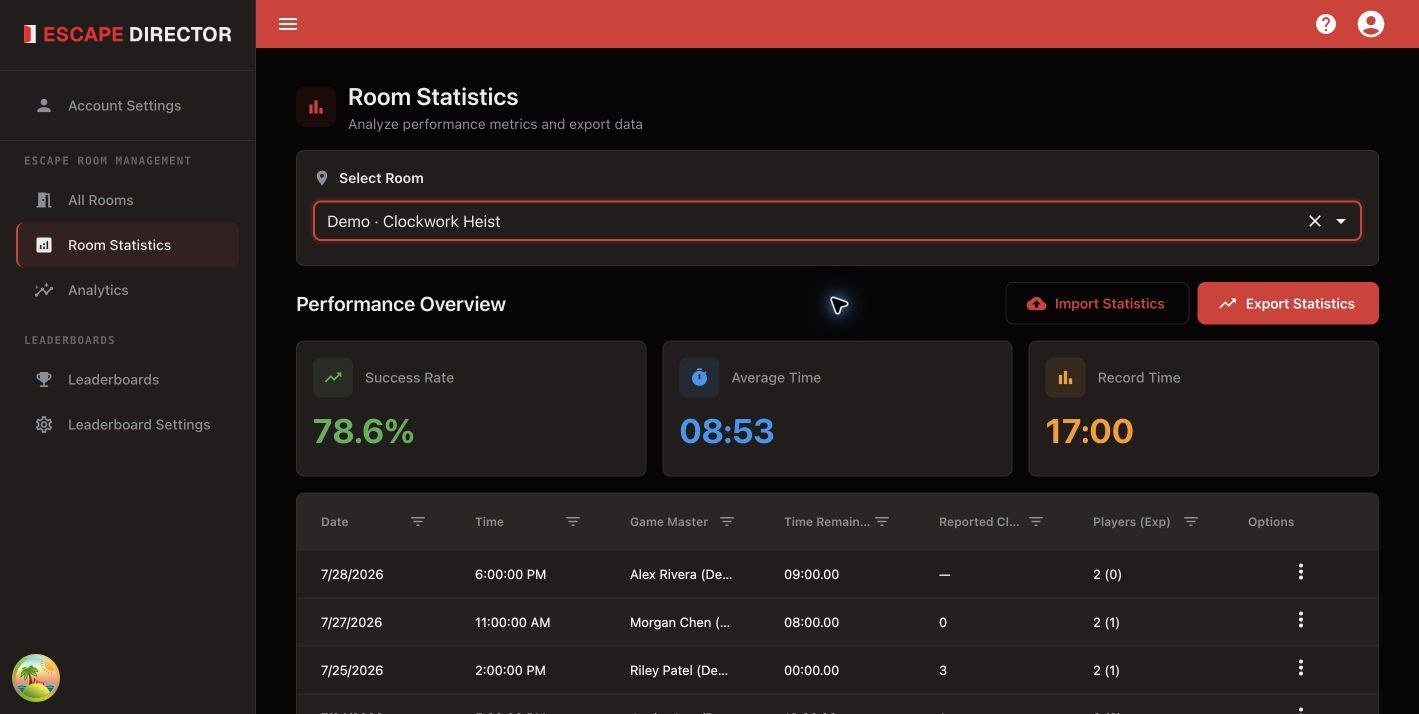
Room Statistics combines summary values with the underlying Session list.
Edit a Room Session
Use a row’s actions to edit the team name, Game Master, reported Clues, player counts, notes, or public-leaderboard exclusion. The date, result, Room, and time remaining can’t be changed.Review a Room Session
Choose View report from a row’s actions to see how the game went: the result, time left, Clues, Puzzles solved, and any pauses or time changes. The chart shows time left on the clock across the game, with what was sent and every clock change underneath. Hover over or tap a mark to see what it was. Sessions imported from a CSV file have no timeline, so their report shows the totals only. Switch to Session Log for every event in order. Its filter starts with everything shown; the session start, time adjustments, and outcome are always shown. An older record may keep a Game Master’s earlier name after the profile is renamed or archived. View notes shows the notes saved with the session. Choose Edit notes to change them.Import or export CSV
- Export Statistics downloads the Room’s Room Sessions as a CSV file.
- Import Statistics checks the file before adding its Room Sessions to the selected Room. If anything needs fixing, nothing is imported and Escape Director tells you which row and column to correct.
- Create a Game Master Profile for every Game Master named in the file. Names match regardless of capitalization.
- Keep each file to one Room.
- Keep a copy of the original before you edit it.
Statistics CSV format
Start from an export or from the template CSV. The first row must contain these headers, spelled exactly and in this order. Each following row is one Room Session.
Example row:
Older exports
Files exported before the current format have six columns: Date, Game Master, Time Remaining, Clues Used, Total Players and Experienced Players. Import Statistics still accepts them. Each session is recorded as a failure when Time Remaining is00:00.00, and as a success otherwise.