> For the complete documentation index, see [llms.txt](https://docs.escapedirector.com/llms.txt). Markdown versions of documentation pages are available by appending `.md` to page URLs; this page is available as [Markdown](https://docs.escapedirector.com/review-and-improve/manage-leaderboards.md).

# Manage Leaderboards

Use Leaderboards to review eligible successful Room Sessions and control the player-facing ranking display.

## Review rankings

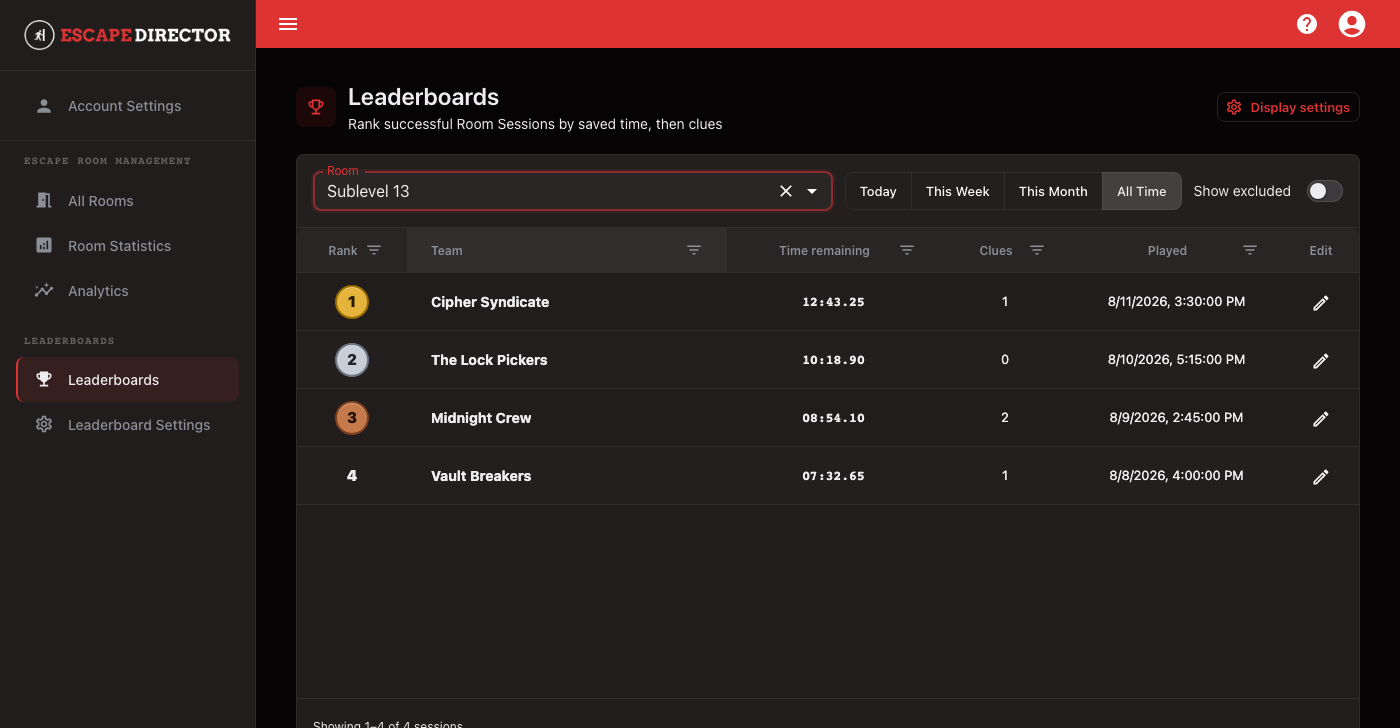
1. Select **Leaderboards**.
2. Choose a Room.
3. Choose **Today**, **This Week**, **This Month**, or **All Time**.
4. Review team name, saved time remaining, reported Clues when the Room collects them, and played date.

<figure><img src="/files/GDojmTYSecQjadzCXj52" alt="Leaderboard for the synthetic Sublevel 13 Room showing gold, silver, bronze, and fourth-place Room Sessions for the selected period, with different saved times and reported Clue counts"><figcaption><p>Leaderboards rank included successful Room Sessions within the selected period.</p></figcaption></figure>

Saved time remaining determines the primary order. When the Room collects reported Clues, fewer Clues break a tie between Room Sessions with equal time. When it does not, equal times remain tied and the leaderboard does not show a Clues column. Failed Room Sessions are not ranked.

## Correct a leaderboard entry

Use the row edit action to correct the public team name or select **Exclude from public leaderboards**. Keep private operational notes in Room Statistics; do not put them in the public team name.

Use **Show excluded** only when you need to review entries intentionally removed from the public ranking.

## Configure the lobby display

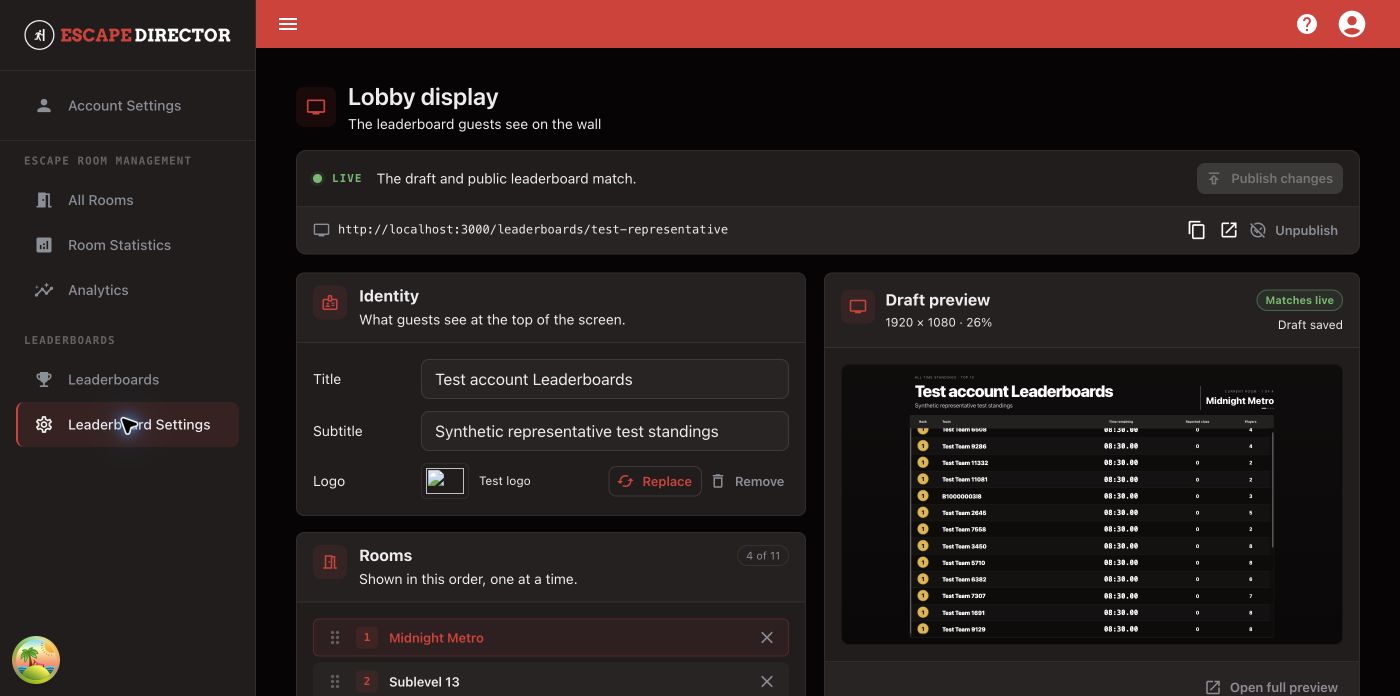
Select **Display settings** to open the lobby display workspace.

<figure><img src="/files/ErAPN3mZJh5G7K81yDQ0" alt="Leaderboard Settings showing live publication status, Identity and Rooms controls, and a 1920 by 1080 Draft preview"><figcaption><p>The draft preview stays beside the settings while the public leaderboard remains on the last published version.</p></figcaption></figure>

Work through the page in order:

1. Set the display title, optional subtitle, and logo under **Identity**.
2. Add Rooms, drag them into presentation order, and select a Room to preview it.
3. Under **Standings**, choose how many teams to show and the ranking period. Rank, team, time, and Clues are automatic; select the optional **Players** and **Date** columns in the table preview.
4. Under **Appearance**, choose the default background, any Room-specific background exceptions, and the fallback color used when there is no image.
5. Check the **Draft preview** at the right. Open the full preview when you need to judge it at display size.

Changes save to a draft automatically; they do not change the public leaderboard until you select **Publish** or **Publish changes**. Use **Reset to published** to discard the current draft and restore the live configuration. After publishing, use **View live** to check the public link on the actual lobby display.

## You're ready when...

The correct Room and period show only the successful Room Sessions intended for public ranking, and the lobby display reports that the draft and public leaderboard match.