

Before you begin
- The Device SDK: download the SDK ZIP from the latest release on GitHub. It’s open source under the MIT License, so you can use and change it for your props however you like.
- A supported board: the SDK includes adapters for the Arduino UNO R4 WiFi and GIGA R1 WiFi. Other boards with USB and Wi-Fi work once they have a board adapter; see the SDK’s board porting guide.
- Room Connector, up to date and running on the Room Station. See Connect Room Devices.
- Chrome on the same computer, a USB data cable, and experience uploading Arduino sketches.
1. Upload the example
FollowGETTING_STARTED.md in the SDK. It installs the libraries and uploads
room_basic, a train door with one prop, Train door. The board’s built-in
LED stands in for the door, and touching pin 2 to GND pulls its lever, so it
needs no wiring.
2. Pair the controller
These steps are for a controller running your own firmware. To pair one without it and set up its props in the app instead, use Escape Director firmware.- Stop any game. In Devices, choose Add Integrated Device → Your own firmware (SDK), name the Device, then choose Add Device and Save Devices.
- Close Arduino IDE’s Serial Monitor and other programs using the controller.
- Open the Device and choose Pair controller. Select your board under USB controller, then choose Check controller.
- Choose the Room Station’s Wi-Fi network (controllers use 2.4 GHz Wi-Fi), enter its password and choose Join network.
- When the Device shows Connected and lists your firmware’s props, choose Save props to Room. Its expanded panel then says Room matches the controller.
3. Test the props
Turn on Test mode and try each prop’s commands. Only commands your firmware allows in Test mode appear. Watch the physical outputs as well as the reported state: a confirmed command means the controller accepted it, not that a mechanism moved. With the example, Open door lights the LED for one second.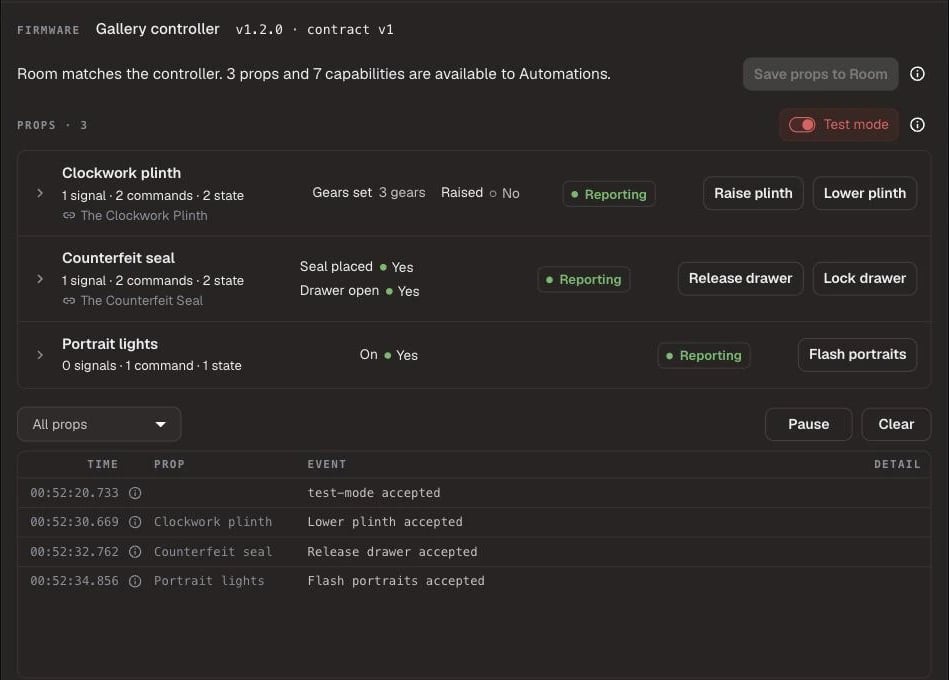
In Test mode, each prop shows its readings and the commands your firmware allows.
4. Use the props in your Room
- Completes Puzzle: for a prop that supports it, choose the Puzzle it completes. Completing either one completes the other.
- Automations: use the prop’s signals as triggers and its commands as actions. They appear as Device › Prop › Capability.
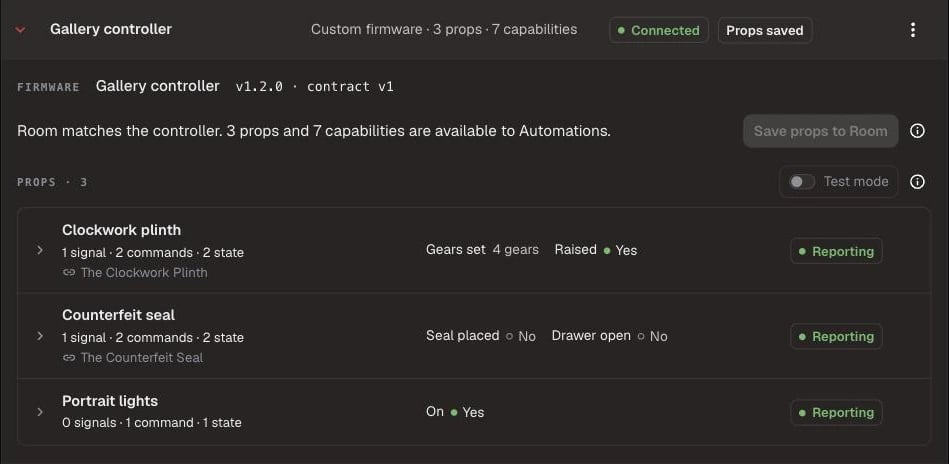
Props your firmware declares, with their live readings and linked Puzzles.
5. Update your firmware
Change your sketch’s version whenever you change it. Any change to its name, version, or declared props, signals, commands or state needs a connection update, even if the prop behaves the same.- Stop any game, turn off Test mode, then upload the new firmware.
- Open the Device’s Controller setup and choose Check controller → Update connection. Setup lists any props that changed.
- When the controller reconnects, choose Save props to Room.
- Check each prop’s Completes Puzzle link and Automations, then test again.
Build your prop with a coding agent
The SDK includesAGENTS.md, instructions that coding agents such as Claude
Code read automatically. It tells the agent how to add the SDK to your sketch
while keeping your puzzle logic.
- Open the extracted SDK folder in your coding agent.
- Describe your prop: its inputs and outputs, what solves it, and which commands you want. For example: “Add the SDK to my vault_keypad sketch. Make one prop that completes when 4-7-1-9 is entered on the keypad, with Reset and Open latch commands. Compile it for the UNO R4 WiFi.”
- Review the changes, upload the firmware, then follow step 2 or step 5 above.
- Test every command yourself. An agent can compile and upload the firmware, but it can’t check the wiring or the prop.